CSV Viewer
Link to open source: https://toolsvale.com/csv-viewer/
How to Use the CSV Viewer
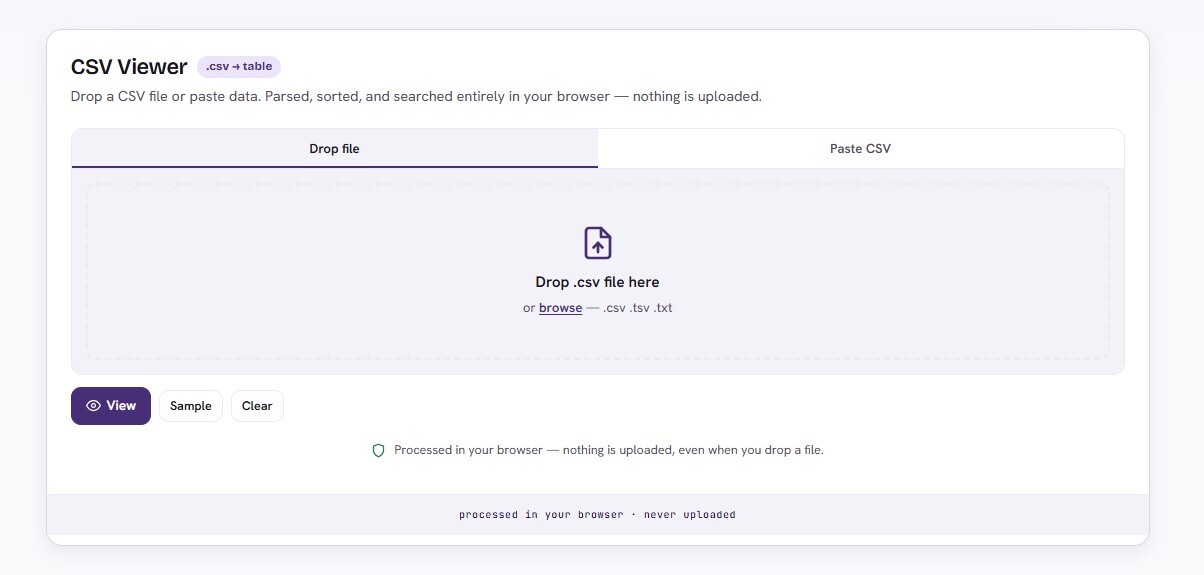
Drop or paste. Drag a .csv, .tsv, or .txt file onto the drop zone, or switch to the Paste tab and paste raw CSV data from any source — a database export, API response, spreadsheet copy, or log file.
Review the detection. The tool auto-detects your delimiter (comma, tab, semicolon, or pipe) and whether the first row is a header. Both decisions are shown in the detection banner with a confidence level. If the header detection is wrong, toggle the “First row is header” checkbox to override it instantly.
Explore your data. The Data Insights panel shows row count, column count, total cells, fill rate, and file size. The Column Analysis panel breaks down each column by type, unique values, and statistics. Click any column header to sort. Use the search box to filter rows across all columns.
Download. Use “Download” for the original raw file, or “Download View” for the current filtered and sorted view — with formula-injection characters safely prefixed for Excel.
What This Tool Detects That Others Don’t
Most CSV viewers silently assume comma separation and a header row. This one states every assumption it makes: which delimiter it detected, how confident it is, and why it thinks the first row is or isn’t a header. When it’s wrong, you override it with a checkbox instead of re-formatting your file.
It also catches problems other viewers ignore. Inconsistent column counts across rows are flagged with the exact row numbers. Cells starting with =, +, -, or @ are identified as potential formula injection risks — a security issue when CSV files are opened in spreadsheet applications. The sanitized export neutralises these before download.

