TabLockX - A Google Chrome Extension by Vivek Singh aka (imvks)
Link to open source: https://github.com/imvks786/TabLockX
TabLockX
TabLockX is a robust Chrome extension that empowers users to safeguard their sensitive information and maintain better control over their browsing experience. With its advanced capabilities, this extension is tailored to provide an exceptional user experience while ensuring a secure and distraction-free online environment.
What it do?
It lock your tab in google chrome while are you not working on that tab, or you can also simply lock using shortcut key. If you are a college student and wanted a unique project so, you are on right place. You can use it for your college project as well, just customise it add more features and use it.
Features included in TabLockX are:
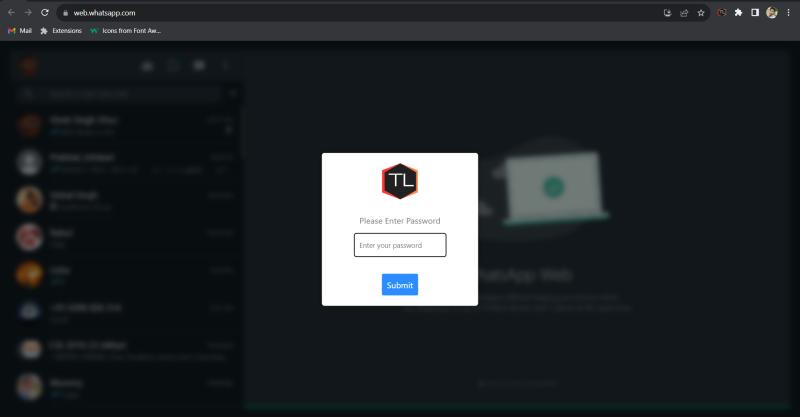
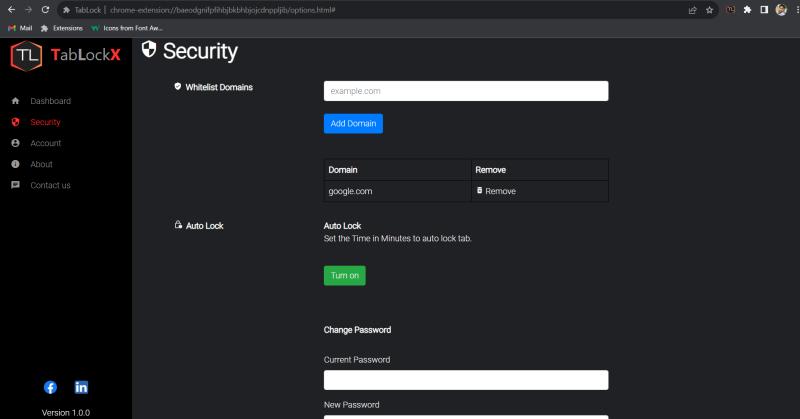
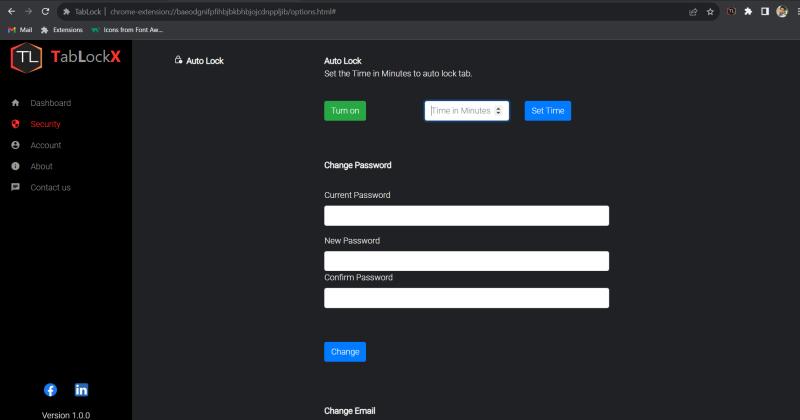
- Auto-Lock Tab: TabLockX boasts an innovative auto-lock feature, which automatically secures your selected tabs after a predefined idle time. This function guarantees that confidential information remains protected from unauthorized access.
- Whitelist/Exceptions: Users have the flexibility to create a whitelist of trusted websites exempt from the auto-lock function. This allows for seamless access to work-related pages or favorite sites without constant reauthentication.
- Customizable Options: TabLockX is highly customizable, allowing users to personalize settings based on their preferences. Users can choose the idle time duration, activate or deactivate auto-lock, and customize the notification preferences.
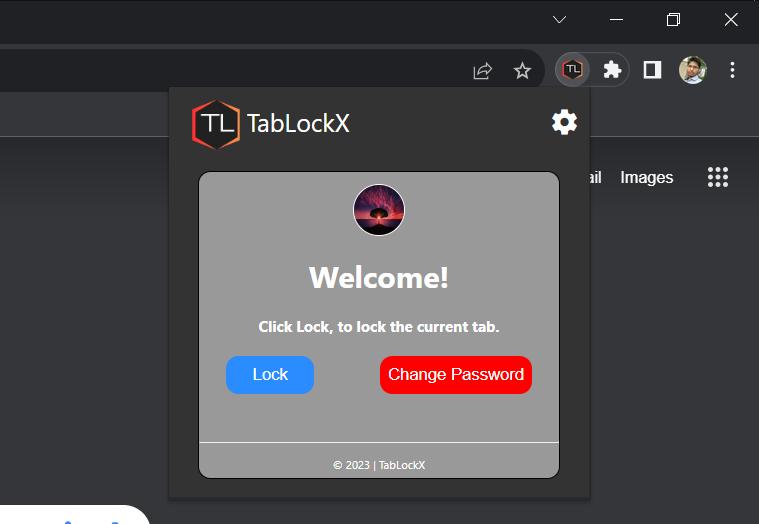
- User-Friendly Interface: With an intuitive and visually appealing interface, TabLockX offers a seamless user experience. Simple navigation and easy-to-use controls ensure that users can swiftly optimize the extension's functionality.
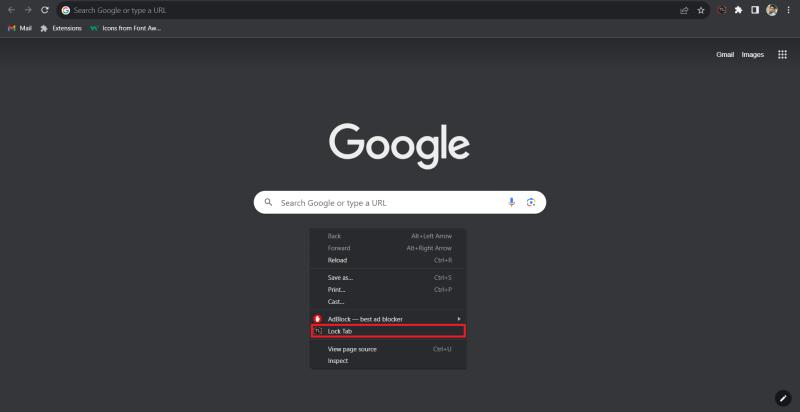
- On One Click: Available on the context menu, to directly lock the tab without moving to extension icon.
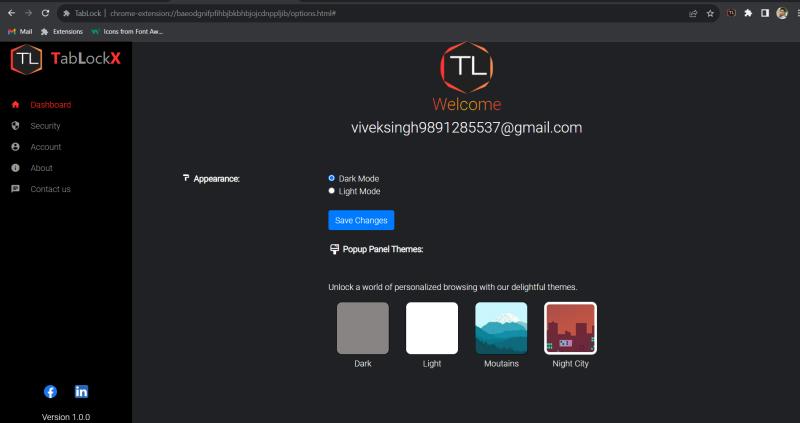
- Themes: You can use the extension in two available theme which is Dark and Light mode.
To Try on your system:
If you want to try this extension just follow given step from 1 to 7. After setting up extension navigate to extension icon on tab bar and click on that then click on signup. Now click on already have an account, and enter following creditinals:
User: imvks786@gmail.com
Password: @786imvks
How to install this extension?
To install an unpacked extension in Google Chrome, follow these steps:
NOTE: You need to setup also some configuration such as Database for storing passwords and users, And you need a app password in send_email.php file for setting up the mail sender.


