Autocomplete Input in React
Overview
This is the first lab in the series of cool React mini apps/components that we are going to build together. I have tried to keep it simple and at the same time informative enough so that you folks actually learn about how to create a custom autocomplete input box in React.
Features of the component
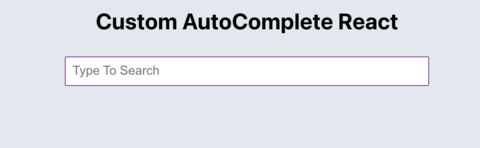
There is an input box with placeholder
On focussing on the input, a list of pokemons with their name and image appear in the div below.
You can type something in the input and the list will get filtered accordingly
On selecting an item in the list, the list disappears with the name of the pokemon in the input.
Nice to have features:
If the list of pokemons is visible, clicking on the input or any where in the page, the list should disappear and should reappear again when focussing on the input
Learning Objectives
In this lab, you will learn about different React concepts like hooks, creating a function component, data fetching in React, usage of array functions like map, fill, filter, etc.
To get the most out of this series:
You need to be at least acquainted with basic JS and React concepts. You will be able to understand everything if you have given atleast a day to learn React.
Code/Environment Setup:
Preferred Code Editor: VS Code,
Node version >= 12.0.0
Create a react project boilerplate using the create-react-app CLI or if you have npx installed on your system you can directly do npx create-react-app
To get npx on your system, run
npm install -g npx
npx create-react-app custom-autocomplete-react
cd custom-autocomplete-react
yarn start or npm start
and there you go!
You have your react project ready to be consumed and altered into something meaningful.








.png "GDG New Delhi")
.png "CodeAsylums Community")